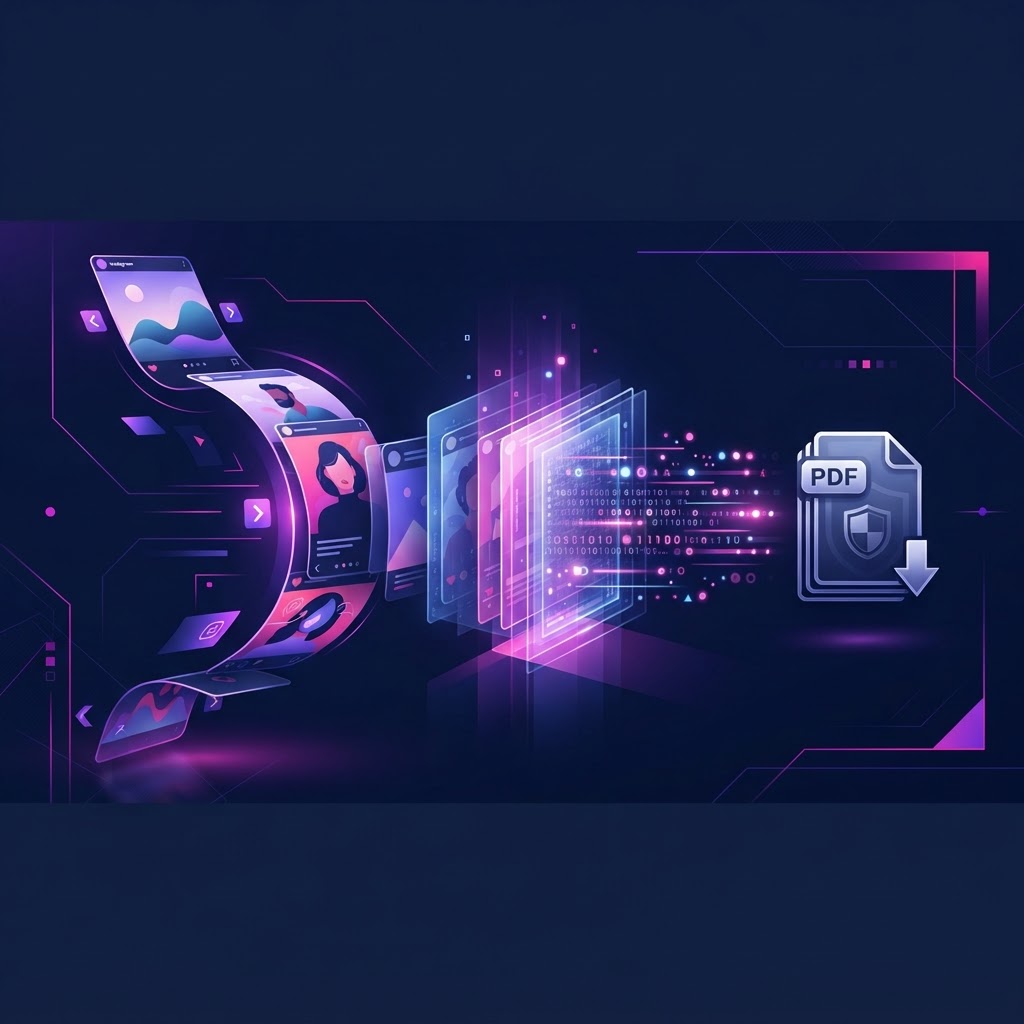
To convert an Instagram carousel to a PDF archive, you first need to download the individual images from the public post using a media downloader. Once the images are saved to your device, you can use built-in operating system tools or dedicated conversion software to combine those images into a single, multi-page PDF document for permanent offline storage and easy reference.
Key takeaways
- Archiving carousels as PDFs preserves educational content, tutorials, and visual data in a universally readable format.
- You must first download the carousel images using a tool that supports multi-slide extraction.
- InstaSpy.ai allows you to view and download available public Instagram media without requiring an Instagram login.
- Mixed aspect ratios within a single carousel can cause formatting issues during PDF conversion; standardizing image sizes prevents this.
- No tool can access or archive content from private Instagram accounts.
Why Archive Instagram Carousels as PDFs?
Instagram carousels have evolved into highly dense, educational formats. Creators frequently use the ten-slide limit to share step-by-step tutorials, detailed industry research, recipe instructions, and complex data visualizations. However, relying on Instagram's native "Save" feature leaves your reference material vulnerable. If the original creator deletes the post, archives it, or if their account is removed, your saved collection disappears instantly.
Converting these posts into a PDF archive solves this problem by creating a permanent, offline copy. A PDF document is universally accessible across all devices, requires no internet connection to view, and maintains the exact visual fidelity of the original post. Furthermore, PDFs can be easily organized into local folders, tagged with metadata, and shared with colleagues or team members without requiring them to navigate to the Instagram app.
For researchers, designers, and professionals who rely on visual inspiration or data shared on social media, a PDF archive acts as a reliable knowledge base. It removes the distractions of the social media feed, allowing you to focus purely on the information presented in the slides. This approach is a core component of The Ultimate Guide to Archiving Instagram Content for Personal Reference, ensuring that valuable public information remains accessible on your own terms.
The Challenge of Accessing Content Without an Account
One of the primary hurdles in archiving Instagram content is the platform's aggressive login wall. If you attempt to browse Instagram via a web browser without being logged into an account, you will quickly be blocked by a prompt demanding your credentials. This makes it difficult to gather research or archive public posts if you prefer not to use your personal account or if you simply do not have one.
Many users attempt to bypass this by creating secondary accounts, but managing multiple logins simply to view public content adds unnecessary friction to the archiving process. Furthermore, when you are logged in, your viewing activity is tied to that specific account profile.
InstaSpy.ai addresses this workflow bottleneck by allowing users to view available public Instagram content without requiring an Instagram login. You can access available profiles, view their available carousels, and download the media directly to your device. It is important to note the boundaries of available content: InstaSpy.ai, like all external tools, cannot access private accounts or content that is otherwise unavailable to the public. It simply provides a streamlined, login-free interface for viewing and downloading what is already publicly accessible.
Step-by-Step Tutorial: How to Convert Instagram Carousel to PDF Archive
Creating a clean, readable PDF from an Instagram carousel requires a systematic approach. This workflow ensures you capture the highest quality images and compile them in the correct order.
Step 1: Locate and View the Public Carousel
Begin by identifying the available profiles containing the carousel you wish to archive. Instead of navigating through the Instagram app, you can use InstaSpy.ai to view the profile without logging in. Simply enter the Instagram username into the search bar. Navigate to the user's grid and select the specific carousel post. You will be able to view all available slides within that post directly from the interface.
Step 2: Download the Carousel Media
Once you have the carousel open, you need to save the individual slides to your local device. InstaSpy.ai provides one-click downloads for available profile media. Click the download button for each slide you wish to include in your archive. Ensure you save them in a dedicated folder on your computer (e.g., "Project_Name_Carousel_Archive") to keep the files organized before conversion.
Step 3: Verify Image Order and Quality
Before converting, open your local folder and verify that all images have downloaded correctly. Instagram carousels rely heavily on sequential storytelling. Rename the downloaded files sequentially (e.g., slide_01.jpg, slide_02.jpg, slide_03.jpg) to guarantee they appear in the correct order when imported into your PDF converter. Check that the text on the images is legible and that no slides are missing.
Step 4: Convert the Images to a PDF Document
With your images organized and sequentially named, you can now convert them.
If you are using a Mac:
- Select all the sequentially named images in your folder.
- Right-click and open them with the built-in Preview app.
- In Preview, go to File > Print.
- In the Print dialog, look for the PDF dropdown menu at the bottom and select "Save as PDF."
- Name your file and save it to your archive directory.
If you are using Windows:
- Select all the images in your folder.
- Right-click and select "Print."
- In the Printer dropdown, choose "Microsoft Print to PDF."
- Ensure "Fit picture to frame" is unchecked if you want to maintain the original aspect ratio.
- Click Print, name your file, and save it.
Comparing Instagram Carousel Download and Conversion Tools
When building an archiving workflow, selecting the right tools is critical. Several platforms offer different approaches to downloading and converting Instagram media. We will compare InstaSpy.ai with other tools mentioned in recent web searches, specifically FastDl and igli.
FastDl is a web-based downloader that requires users to paste a specific Instagram URL to extract media, as detailed on their official carousel downloader page and corroborated by similar tool structures on TrendSee. It focuses purely on extraction via URL.
Igli is a dedicated conversion tool designed to turn downloaded images into PDFs, primarily marketed for LinkedIn repurposing. According to their official site and discussions on Reddit, it offers a free tier with watermarks and a paid tier for watermark-free, high-resolution exports.
Feature Comparison Table
| Feature | FastDl | igli | InstaSpy.ai |
|---|---|---|---|
| Works without an Instagram login | Yes | Yes (Converter only) | Yes |
| View stories | No | No | Yes |
| View highlights | No | No | Yes |
| View reels and profile media | Yes (via URL) | No | Yes |
| One-click downloads | Yes | No (Export only) | Yes |
| Profile tracking with new-story alerts | No | No | Yes |
| Transparent cancel-anytime billing | N/A (Free tool) | Yes | Yes |
| Ad-free experience | No | Yes (Paid tier) | Yes |
Verdict
For users looking to build a comprehensive archiving workflow, we recommend InstaSpy.ai. While FastDl allows for URL-based downloading and igli provides a specialized PDF conversion step, InstaSpy.ai offers a superior all-in-one viewing and extraction environment. Because it works without an Instagram login, you can seamlessly view stories, highlights, reels, and profile media in one place, utilizing one-click downloads to gather your archive materials. Furthermore, InstaSpy.ai includes profile tracking with new-story alerts and transparent cancel-anytime billing within an ad-free experience. It is important to remain honest about limitations: no tool, including InstaSpy.ai, can access private accounts or bypass Instagram's privacy settings. However, for available public content, it provides the most robust foundation for your archiving needs.
Try InstaSPY now
View your first Instagram profile anonymously for free
Enter a username to view available stories, highlights, reels, and posts without an Instagram login.
No Instagram password required
Best Practices for Organizing Your PDF Archives
Downloading and converting carousels is only the first half of the process; organizing them ensures they remain useful over time. A poorly managed archive quickly becomes a digital dumping ground, making it impossible to find specific tutorials or data points when you actually need them.
Establish a strict naming convention for your PDF files. A highly effective format is YYYY-MM-DD_CreatorHandle_Topic.pdf. For example, 2026-10-15_DesignPro_TypographyTips.pdf. This structure allows you to sort your archive chronologically or search by the creator's username instantly.
Create a logical folder hierarchy on your local drive or cloud storage. Instead of grouping all PDFs into one massive folder, categorize them by broad subjects such as "Marketing Strategy," "Graphic Design Tutorials," or "Fitness Routines." Within those folders, you can further sub-divide by specific creators if you archive their content frequently.
Additionally, consider maintaining a simple spreadsheet to track the profiles you monitor for valuable content. This ties into broader monitoring strategies, which you can learn more about in The Complete Automated Instagram Profile Monitoring Tutorial. By keeping a log of high-value available accounts, you can periodically check their feeds for new carousels to add to your organized PDF library.
Troubleshooting Common Carousel Conversion Errors
Even with a solid workflow, you may encounter technical hiccups when converting image files into a single PDF document. Understanding how to resolve these common errors will save you time and frustration.
Mixed Aspect Ratios
Instagram allows carousels to contain images of varying aspect ratios (e.g., mixing square 1:1 images with portrait 4:5 images). When you convert these mixed sizes into a standard PDF, the converter may stretch, crop, or awkwardly center the images on the page. To fix this, ensure all downloaded images are cropped to the same aspect ratio before conversion. You can use basic photo editing software to add white borders to the square images so they match the dimensions of the portrait images, resulting in a uniform PDF document.
Missing or Out-of-Order Slides
If your final PDF is missing slides or displays them out of sequence, the issue almost always stems from file naming. Operating systems sort files alphanumerically. If you name your files slide1.jpg through slide10.jpg, the system will often place slide10.jpg immediately after slide1.jpg. Always use leading zeros in your file names (e.g., slide01.jpg, slide02.jpg) to force the operating system and the PDF converter to recognize the correct chronological order.
Illegible Text After Conversion
Sometimes, the text on a carousel slide looks perfectly clear on a mobile screen but becomes blurry or pixelated when converted to a PDF. This usually happens if the PDF converter applies heavy compression to reduce file size. When saving or printing to PDF, check the settings dialog for quality options. Ensure you select "High Quality" or "Best" rather than "Smallest File Size."
Automating Your Archiving Workflow
Manually checking profiles every day to see if they have posted a new, valuable carousel can be incredibly time-consuming. To build a truly efficient archiving system, you need to introduce elements of automation into your workflow.
While the actual conversion of images to PDF remains a local, manual step to ensure quality control, the discovery and monitoring phase can be streamlined. By utilizing profile tracking features, you can monitor specific available accounts for new activity. When a tracked profile posts new available media, you can efficiently navigate to the profile, review the new carousel, and decide if it warrants downloading and archiving.
This proactive approach ensures you never miss critical information from industry leaders or educational creators. It also helps you maintain a historical record of an account's public output, which can be useful for competitive analysis or tracking content trends over time. For insights into monitoring other profile metrics, you might also find value in Detecting Hidden Instagram Follower Changes: A Practical Guide.
Frequently Asked Questions (FAQ)
Can I convert a carousel to a PDF directly from the Instagram app?
No, the native Instagram application does not offer a feature to export or save posts as PDF documents. You must first download the individual images using an external tool and then convert those saved files into a PDF on your device.
Does converting a carousel to PDF notify the original creator?
No. Downloading publicly available images and converting them locally on your computer is a completely independent process. The original creator receives no notification that you have saved or converted their public media.
Why are some carousels unavailable for download?
If a carousel cannot be viewed or downloaded, it is likely because the account is set to private, the post has been archived or deleted by the creator, or the content is otherwise restricted. External tools can only access media that is currently available to the public.
Can I include videos in my PDF archive?
PDF documents are designed for static text and images. If an Instagram carousel contains a mix of photos and videos, the video files cannot be embedded as playable media within a standard PDF. You will need to archive the video files separately in your local folders.
Is it legal to archive public Instagram posts?
Archiving publicly available content for personal, offline reference is generally acceptable. However, you must respect copyright laws; you cannot republish, sell, or claim ownership of the downloaded content. The archive should be strictly for your own educational or reference purposes.
Conclusion
Converting an Instagram carousel to a PDF archive is a highly effective way to preserve valuable tutorials, research, and visual data for permanent offline access. By establishing a clear workflow—locating the public post, downloading the media sequentially, and using reliable conversion methods—you can build a robust, organized library of reference material that is immune to sudden deletions or platform changes.
To streamline the first crucial step of this process, you need a reliable way to view and extract public media without the friction of login walls. InstaSpy.ai provides a seamless, anonymous viewing experience for available Instagram content, allowing you to gather the slides you need quickly and efficiently. Start building your personal knowledge archive today by visiting InstaSpy.ai to explore available profiles and download high-quality carousel media with a single click.