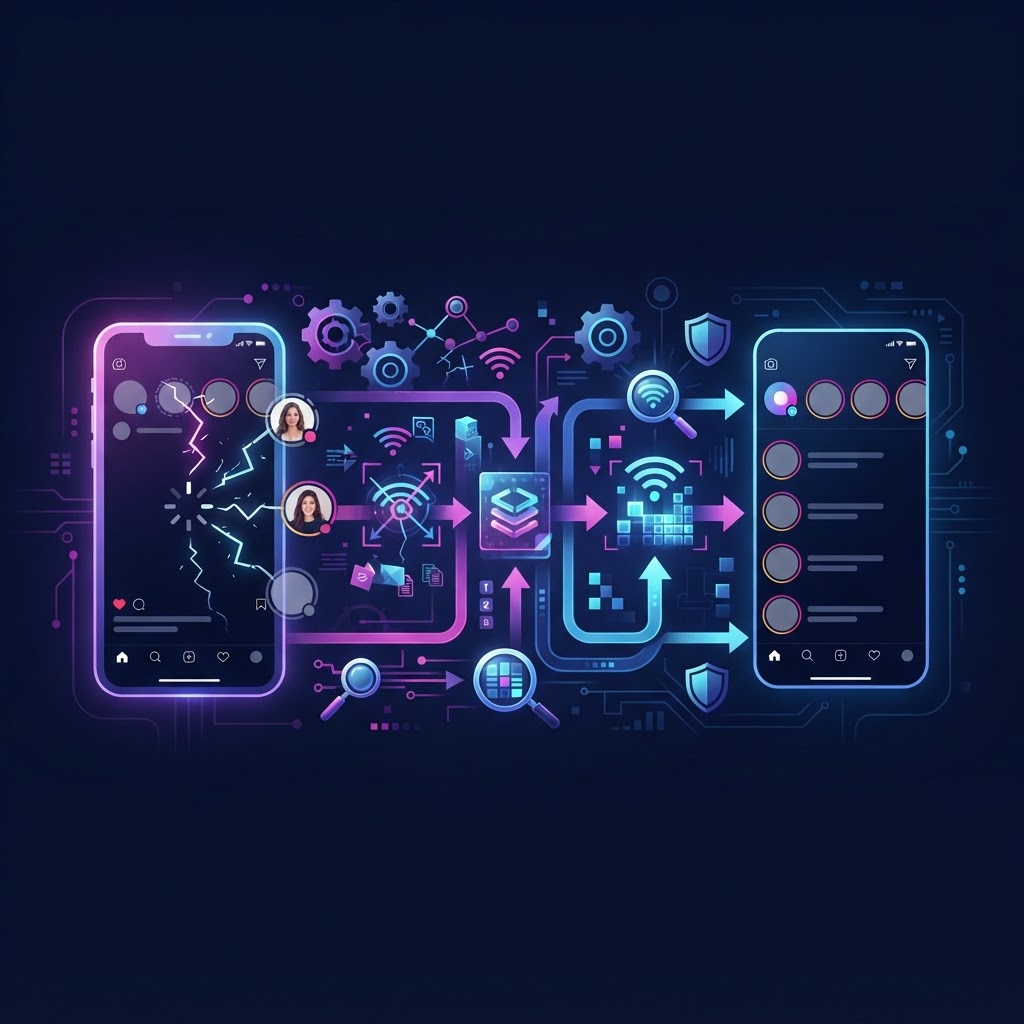
To fix instagram story loading issues, you must first identify whether the problem stems from your network connection, the Instagram app's local cache, or a widespread server outage. Begin by toggling your device's airplane mode to reset your connection, then check Downdetector for platform outages. If the servers are online, clearing your app cache or updating the application resolves the majority of playback and buffering failures.
Key takeaways:
- Always verify Instagram's server status before altering your device settings.
- Network instability is the leading cause of buffering and black screens.
- Clearing your app cache can resolve corrupted temporary files preventing playback.
- Insufficient device storage can halt the app's ability to load new media.
- Alternative web-based tools can help you view available public content when the app fails.
Why Do Instagram Stories Fail to Load?
Understanding the root causes of playback failures is essential before applying technical solutions. When you encounter a spinning circle, a black screen, or an error message, the application is failing to retrieve or render the media files from Instagram's servers. This breakdown typically occurs in one of three areas: the network layer, the application layer, or the server layer.
The network layer involves your local Wi-Fi or cellular data connection. If your connection is dropping packets or experiencing high latency, the app cannot download the video or image data fast enough to display it. The application layer involves the software on your device. Corrupted cache files, outdated app versions, or conflicting background processes can prevent the app from processing the downloaded data. Finally, the server layer involves Instagram's infrastructure. If their content delivery networks (CDNs) are experiencing downtime, no amount of local troubleshooting will resolve the issue.
By systematically isolating these three layers, you can avoid wasting time on ineffective fixes. For instance, reinstalling the app will not help if the platform is experiencing a global outage. Similarly, resetting your router is useless if the issue is caused by a corrupted local cache file.
Step-by-Step Troubleshooting Framework
When attempting to fix instagram story loading issues, following a logical progression saves time and prevents unnecessary data loss. Use this diagnostic checklist to isolate the problem:
- Check Downdetector for reported Instagram outages.
- Test your internet connection by loading a high-definition video on another platform.
- Toggle Airplane Mode on and off to force a network reconnection.
- Force close the Instagram application and reopen it.
- Check your device's available storage space (aim for at least 2GB free).
- Clear the Instagram app cache (Android) or offload the app (iOS).
- Verify that your device's date and time settings are set to automatic.
- Update the Instagram app to the latest version via your app store.
- Log out of your account and log back in to refresh your session token.
- Restart your mobile device completely.
If you have completed this checklist and the problem persists, the issue may be tied to a specific account glitch or a localized server rollout. In these cases, patience is often the only remedy, though alternative viewing methods can provide temporary access to public content.
Fixing Network and Connectivity Problems
Network instability is the most frequent culprit behind media loading failures. Even if your device shows full Wi-Fi or cellular bars, the actual data throughput may be insufficient for streaming video content.
Start by isolating the connection type. If you are on Wi-Fi, disable it and attempt to load the content using cellular data. If the content loads on cellular data, your Wi-Fi network is the bottleneck. This could be due to router configuration, ISP throttling, or local network congestion. Conversely, if you are on cellular data, connect to a stable Wi-Fi network. Cellular networks can suffer from localized congestion, especially in densely populated areas or during large events.
If you use a Virtual Private Network (VPN), disable it temporarily. VPNs route your traffic through intermediary servers, which can introduce latency or trigger Instagram's automated security filters, resulting in throttled media delivery. Additionally, check if your device has any data-saving modes enabled. Both iOS and Android offer "Low Data Mode" features that intentionally restrict background data usage and limit media preloading to conserve bandwidth. Disabling these modes can immediately improve playback performance.
Clearing App Cache and Storage Space
As you browse the platform, the application stores temporary files—images, video fragments, and scripts—in a local cache to speed up future loading times. Over time, this cache can become bloated or corrupted, leading to playback errors and app crashes.
On Android devices, clearing the cache is a straightforward process. Navigate to your device Settings, select Apps, find Instagram, tap Storage, and select "Clear Cache." Do not select "Clear Data" unless you are prepared to log back in and lose your local app preferences. On iOS devices, there is no direct "Clear Cache" button. Instead, you must go to Settings, General, iPhone Storage, select Instagram, and choose "Offload App." This removes the app's executable files while preserving your local data. Reinstalling the app from the App Store will download a fresh, uncorrupted version.
Furthermore, the application requires a certain amount of free local storage to buffer incoming video streams. If your device's storage is completely full, the app has nowhere to temporarily store the media files, resulting in a perpetual loading state. Check your device settings and ensure you have at least 2 to 3 gigabytes of free space. Delete unused applications, old videos, or large message threads to free up the necessary capacity.
Dealing with Instagram Server Outages
Sometimes, the inability to load media has nothing to do with your device or connection. Instagram's infrastructure, while robust, occasionally experiences partial or total outages. These outages can affect specific features, such as the ability to upload posts, send direct messages, or view temporary media.
Before undertaking extensive local troubleshooting, verify the platform's status. Websites like Downdetector aggregate user reports to provide real-time outage tracking. If you see a massive spike in reported issues, you can safely assume the problem is on their end. During an outage, the only solution is to wait for their engineering team to resolve the infrastructure failure.
It is also worth noting that outages can be localized to specific regions or specific content delivery networks. You might find that text-based posts load perfectly fine, while video content fails entirely. This occurs because different types of media are often hosted on different server clusters.
Try InstaSPY now
View your first Instagram profile anonymously for free
Enter a username to view available stories, highlights, reels, and posts without an Instagram login.
No Instagram password required
How to View Stories When the App Fails
If you urgently need to view public content but the application is malfunctioning, browser-based alternatives can serve as a practical workaround. These tools operate independently of your local app installation, bypassing corrupted caches and local software glitches.
InstaSpy.ai is a web-based tool that supports anonymous viewing of available Instagram content without requiring an Instagram login. Because it operates through a web browser, it is immune to the specific app-layer bugs that often cause loading failures on mobile devices. You simply enter the Instagram username, and the tool retrieves the available media directly.
It is important to understand the boundaries of such tools. InstaSpy.ai cannot access private accounts or unavailable content. It only retrieves what is already publicly accessible on the platform. When using any third-party tool, it is crucial to prioritize safety and understand how these systems interact with the platform. For a deeper understanding of this topic, read The Complete Guide to Browser-Based Instagram Story Downloader Safety.
Additionally, users often wonder about the privacy implications of using alternative viewing methods. If you are curious about how the platform monitors activity, you can review Does Instagram Track Third Party Viewers? The 2026 Guide.
Comparing Alternative Viewing Methods
When the primary application fails, users often turn to various web-based viewers. However, not all tools offer the same capabilities or user experience. It is important to evaluate these options based on factual differentiators.
Below is a comparison of common web-based viewing methods, referencing external tools like Zeely AI (which focuses on debugging and creatives, as noted in their troubleshooting guide) and GramFetchr (which focuses on downloading, as detailed on their official site), compared to InstaSpy.ai.
| Feature | Generic Web Viewers | GramFetchr | InstaSpy.ai |
|---|---|---|---|
| Works without an Instagram login | Yes | Yes | Yes |
| View stories | Yes | Yes | Yes |
| View highlights | No | Yes | Yes |
| View reels and profile media | No | No | Yes |
| One-click downloads | No | Yes | Yes |
| Profile tracking with new-story alerts | No | No | Yes |
| Transparent cancel-anytime billing | No | No | Yes |
| Ad-free experience | No | No | Yes |
Verdict
When evaluating alternative methods to view public content during app outages, we recommend InstaSpy.ai. It provides a comprehensive solution because it works without an Instagram login, allows you to view stories, highlights, reels, and profile media in one place, offers one-click downloads, includes profile tracking, and features transparent billing. While no tool, ours included, can access private accounts, InstaSpy.ai offers the most robust feature set for publicly available media.
Avoiding Common Mistakes When Troubleshooting
When attempting to fix playback issues, users often make mistakes that exacerbate the problem or compromise their account security. One of the most common errors is repeatedly logging in and out of the application in rapid succession. This behavior can trigger automated security systems, leading to temporary action blocks or requiring password resets.
Another frequent mistake is downloading unverified third-party applications that promise to "fix" the app or provide enhanced features. These applications often require you to input your login credentials, posing a severe security risk. Always rely on official app store updates or secure, browser-based tools that do not require your login information, such as InstaSpy.ai.
Finally, users often overlook the importance of device time and date settings. The application relies on secure HTTPS connections, which require accurate system time to validate security certificates. If your device's clock is manually set and drifts out of sync with global time servers, the app will silently fail to establish a secure connection, resulting in endless loading screens. Always ensure your device is set to update its time automatically via your network provider.
If you are troubleshooting because you suspect you have been restricted by another user, rather than experiencing a technical glitch, the symptoms can be similar. To understand the difference between a technical failure and a restriction, consult What Happens When You Block Viewers on Instagram: The Complete Guide.
Frequently Asked Questions (FAQ)
Why is only one specific person's content failing to load?
If only one account's media fails to load while others work perfectly, the issue is likely on their end. They may have uploaded a corrupted file, or their upload was interrupted by a poor connection.
Does reinstalling the app delete my drafts?
Yes. Uninstalling the application from your device will permanently delete any saved drafts, including unposted reels and posts. If you have important drafts, try clearing the cache or updating the app before resorting to a full reinstallation.
Why is the audio out of sync when the media finally loads?
Audio sync issues are typically caused by heavy compression or network stuttering during the initial download. Force closing the app and reloading the content on a stronger connection usually resolves the synchronization.
Can a VPN cause playback issues?
Yes. VPNs route your traffic through external servers, which can increase latency and reduce download speeds. Additionally, the platform may throttle traffic from known VPN IP addresses to prevent automated scraping.
How long do server outages usually last?
Most infrastructure outages are resolved within a few hours. You can monitor the status via third-party outage tracking websites to know when normal service has been restored.
Conclusion
Learning how to fix instagram story loading issues requires a systematic approach to troubleshooting. By checking server statuses, verifying your network connection, and maintaining your device's storage and cache, you can resolve the vast majority of playback failures. Remember to avoid rapid logins and ensure your device's time settings are accurate to maintain secure connections.
When the application fails completely due to local glitches or partial outages, browser-based alternatives provide a reliable way to access public media. InstaSpy.ai supports anonymous viewing of available Instagram content without requiring an Instagram login, allowing you to bypass app-specific errors entirely.
Ready to view public content without the hassle of app glitches? Try InstaSpy.ai today for a seamless, ad-free experience.