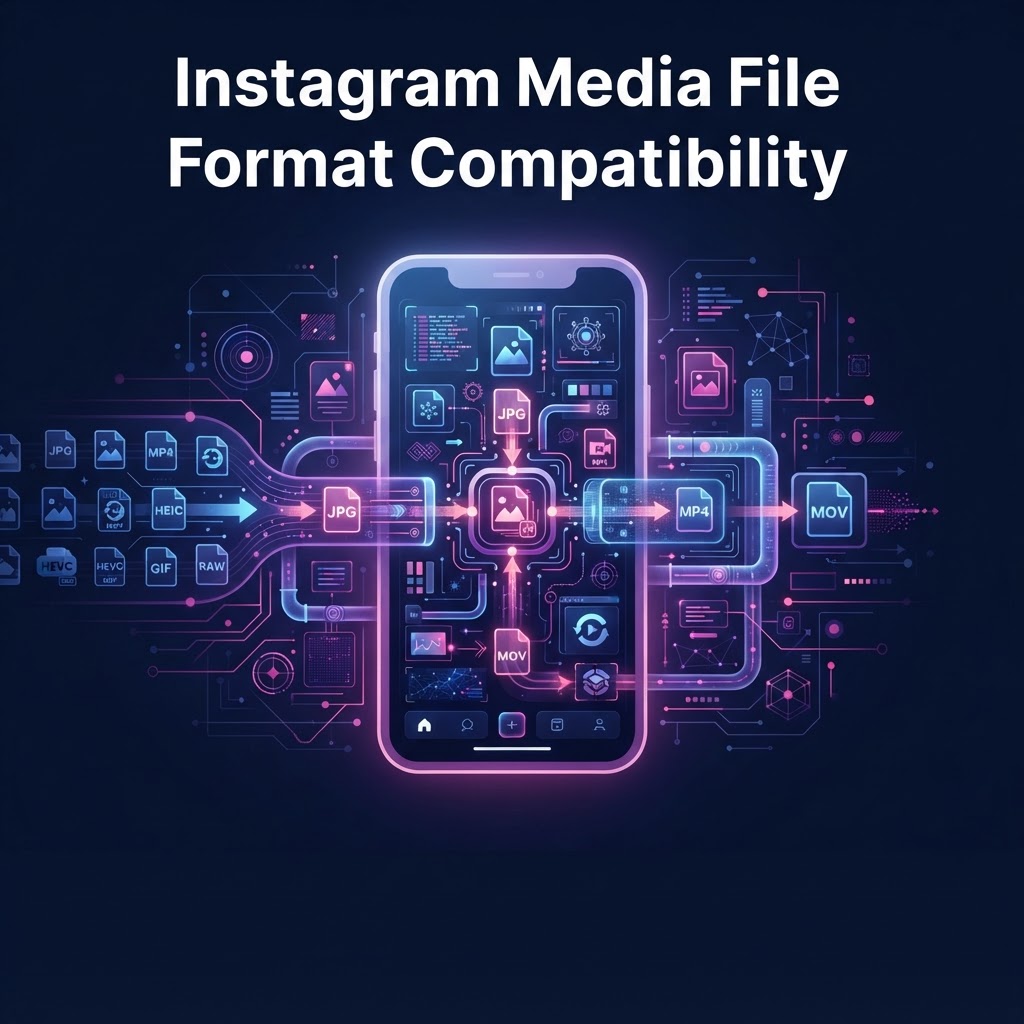
Mastering Instagram Media: A Technical Guide to Optimal File Compatibility and Quality
Instagram maintains strict guidelines for media uploads to ensure consistent performance across millions of devices globally. Understanding Instagram media file format compatibility is essential for creators who want to avoid quality loss, compression artifacts, or failed uploads. At its core, Instagram prefers H.264 video encoding within an MP4 container and JPEG/HEIC image formats for photos, optimized for specific aspect ratios and bitrates. This guide covers the technical nuances required to ensure your content maintains a professional aesthetic after hitting the platform’s servers.
The Anatomy of Instagram-Friendly Video Files
When you upload a video to Instagram, the platform's backend servers automatically transcode your file to match its delivery standards. If your source file is significantly outside the platform's preferred specifications, the compression algorithm may aggressively reduce quality to save bandwidth and storage.
For optimal results, your video must be exported as an MP4 file with the H.264 codec. While newer formats like H.265 (HEVC) are gaining traction, H.264 remains the 'gold standard' for compatibility across both iOS and Android devices. Beyond the container, frame rate and bitrates are critical. While Instagram accepts videos up to 60fps, 30fps is often more stable for general playback, reducing the chances of frame drops during the platform's transcoding phase. Aim for a target bitrate of 3,500 kbps for standard feed videos and up to 5,000 kbps for Reels. Avoid exceeding 8,000 kbps, as the platform's internal encoder will often 'smash' high-bitrate data into a blurry mess to fit its delivery requirements. If you are working on a larger project, consider how this fits into Preserving Instagram Stories for Legacy Storage: A Complete Guide.
Image Format Compatibility and Compression Standards
For static imagery, Instagram supports both JPEG and PNG files. While PNGs are accepted, they frequently undergo a forced conversion to JPEG upon upload, which can result in unpredictable color shifts or compression blocking. To maintain control over your visual fidelity, it is best to export your own JPEGs with a quality setting of 85-90%. This avoids the platform’s 'double compression' effect, where the platform applies its own aggressive optimization on top of your existing file.
Resolution is a frequent point of confusion. Instagram displays feed images at a maximum width of 1080 pixels. Uploading a 4K image does not guarantee higher quality; instead, it forces the system to downsample your file, which often introduces jagged edges or sharpening artifacts. By exporting at exactly 1080px wide, you maintain full control over the sharpening and detail of your image, ensuring it looks exactly as intended.
Aspect Ratios and Navigating UI Boundaries
Aspect ratio is the leading cause of 'cut-off' content. Instagram Stories require a 9:16 ratio (1080x1920 pixels). If you upload wide-screen content, the platform will either crop the edges or add distracting blurred bars. For the feed, the 4:5 aspect ratio is the 'sweet spot' for visibility, occupying more vertical screen real estate than the standard 1:1 square format.
It is vital to remember that the interface elements—the profile picture, username, and caption—can obscure the edges of your media. Always keep your primary subject centered and leave a 'safe zone' of at least 150 pixels from the top and bottom of your Stories to ensure that no vital content is hidden behind the UI overlays. Tools like InstaSpy.ai can help you understand how content looks to viewers by providing a neutral environment for observation, which is useful when Comparing Anonymous Research vs Native Insights: A Guide for Brands.
Resolving Codec Mismatches and Upload Errors
Occasional upload failures or 'file not supported' errors usually stem from audio codec mismatches. Instagram requires AAC (Advanced Audio Coding) for video files. If your export software defaults to uncompressed PCM audio or high-bitrate FLAC, the upload will likely fail or force a messy server-side conversion.
Workflow for Fixing Errors:
- Open your video file in a tool like Handbrake or Adobe Media Encoder.
- Set the Video Codec to H.264 (x264).
- Set the Audio Codec to AAC, 44.1kHz or 48kHz, Stereo.
- Ensure the Constant Rate Factor (CRF) is set between 18 and 22.
- Re-export the file and attempt the upload again.
By forcing the output to match the standard MP4/H.264/AAC structure, you bypass the platform's primary error triggers, ensuring your content is processed efficiently.
Try InstaSPY now
View your first Instagram profile Anonymously for free
Enter a username to view available stories, highlights, reels, and posts without an Instagram login.
No Instagram password required
Mobile Workflow and Camera Settings
Most content is created on smartphones, where the native camera app often captures in high-efficiency HEVC (H.265) format. While Instagram has improved its handling of H.265, many professional creators report better stability using H.264. If you notice your stories look pixelated or experience loading lag, check your smartphone's camera settings. Changing the output format to 'Most Compatible' (which typically uses H.264) can lead to a noticeable jump in upload quality by preventing the app from needing to re-encode your footage from a complex H.265 source.
For creators using advanced tools to conduct competitive analysis, recognizing these file constraints is vital. Top-performing creators rarely upload 'raw' files directly from a phone; they consistently use high-quality exports that fit perfectly within these compatibility bounds, ensuring their brand identity remains crisp and professional across diverse user hardware.
Limitations and Platform Optimization
It is important to acknowledge that no matter how perfect your export settings are, Instagram’s distribution server applies a final layer of optimization based on the viewer's connection speed. If a user is on a slow 3G or constrained cellular network, the platform will serve a lower-bitrate version of your media to ensure fluid scrolling.
Factors beyond your control:
- Viewer Bandwidth: The server will dynamically adjust the bitrate of your video based on the viewer’s internet connection.
- Server-Side Transcoding: Instagram will always re-compress your media; your goal is to provide a file that is clean enough that this final compression does not degrade the visual experience.
- Screen Density: Different display resolutions on user phones will scale your 1080px upload, which can sometimes lead to slight softness on high-PPI displays.
Accept that some degree of loss is inevitable due to bandwidth management; focus your efforts on providing the highest quality input possible to give the algorithm the best data to work with.
Conclusion: The Path to Professional Content
Mastering Instagram media file format compatibility is a process of balancing quality with the platform's rigid technical requirements. By sticking to MP4 containers, H.264 encoding, and precise aspect ratios, you eliminate the variables that lead to poor quality. Whether you are creating for a personal feed or conducting competitive research, understanding these technical constraints ensures that your content survives the transition from your editing suite to the viewer's screen without unnecessary degradation. For those looking to streamline their research or view content effectively without worrying about technical friction, visit InstaSpy.ai today to simplify your Instagram experience.
FAQ: Frequently Asked Questions
- Why does my Instagram video look blurry after uploading? This is typically caused by over-compression. Ensure your file is under 1080px in width and exported at a bitrate between 3,500 and 5,000 kbps.
- Does Instagram support 4K uploads? While you can technically upload 4K, the platform will compress it down to 1080px. You are better off exporting at 1080px to maintain control over the compression process.
- What is the best format for Instagram Reels? Reels strictly require a 9:16 aspect ratio (1080x1920). Use MP4 with H.264 for the best results.
- Can I upload PNG images? Yes, but Instagram will likely convert them to JPEGs. For the most predictable results, export as JPEG yourself at 90% quality.
- Why do my colors look different on Instagram? Instagram uses the sRGB color space. If you export in P3 or Adobe RGB, the colors may appear washed out or altered when displayed on the app; always convert your files to sRGB before uploading.
Related Profiles
- Watch Kai Cenat Instagram Stories Anonymously
- Watch Marques Brownlee Instagram Stories Anonymously | InstaSpy.ai
- Watch Tom Cassell Instagram Stories Anonymously | InstaSpy
- Watch Jordan Brand Instagram Stories Anonymously | InstaSpy.ai
- Watch IU Instagram Stories Anonymously - InstaSpy.ai
- Watch Suzy (@skuukzky) Instagram Stories Anonymously | InstaSpy