Originally published on instaspy.ai by the InstaSPY.ai Team.
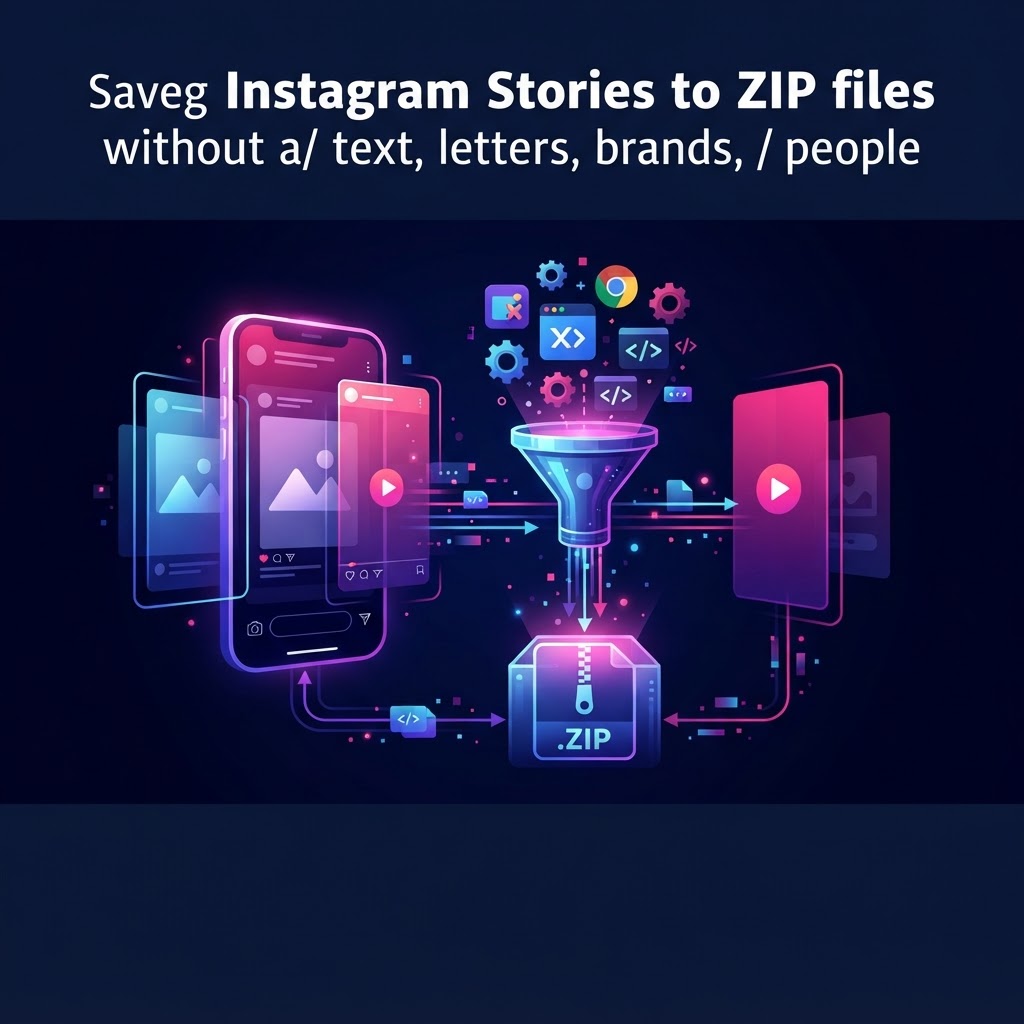
To save Instagram stories to zip, you need a bulk downloading tool that compiles multiple media files into a single compressed archive. The most efficient method is using a dedicated web service or browser extension that extracts active stories or highlights from available accounts and packages them into a downloadable ZIP file without requiring manual screenshots.
Key Takeaways:
- Bulk downloading saves time by packaging multiple stories into one ZIP file.
- Browser extensions and Python scripts offer robust batch export capabilities.
- Web-based tools provide quick access without software installation.
- No tool can bypass Instagram's privacy settings to access private accounts.
- InstaSpy.ai offers a streamlined way to view and manage available public content without an Instagram login.
Preparing Your Device to Save Instagram Stories to ZIP
Before you begin downloading large batches of media, it is crucial to prepare your device and workspace. Managing high-resolution video and image files requires adequate storage and the right software to handle compressed archives.
- Check your available local storage space to ensure you have enough room for large video files.
- Install a reliable archive extraction tool, such as 7-Zip for Windows or The Unarchiver for Mac, to open the downloaded files.
- Create a dedicated folder on your desktop specifically for organizing social media archives.
- Verify that your internet connection is stable, as interrupting a bulk download can corrupt the resulting archive.
- Identify the exact Instagram username you intend to archive, ensuring you have the correct spelling.
- Review your local copyright laws regarding the personal storage of publicly available social media content.
- Decide whether you are archiving active 24-hour stories or permanent profile highlights, as this dictates which tool you will need.
How to Save Instagram Stories to ZIP Using Browser Extensions
Browser extensions integrate directly into your web browser, allowing you to extract media while navigating the desktop version of Instagram. One of the most prominent tools in this category is INSSIST. According to the INSSIST Feature Guide and its listing on the Chrome Web Store, this extension allows users to pin content and export it as a bulk ZIP file.
- Open your Chromium-based browser (such as Google Chrome, Microsoft Edge, or Brave).
- Navigate to the official extension store and search for your chosen bulk downloader.
- Click "Add to Chrome" and grant the necessary permissions for the extension to read website data.
- Log into your Instagram account on the desktop browser, as most extensions require an active session to function.
- Navigate to the target available profiles and open their active stories or highlights.
- Use the extension's interface to "pin" or select the individual stories you wish to include in your batch.
- Open the extension's dashboard and locate the bulk export or "GET ALL" button.
- Click the export button to compile the selected media and save Instagram stories to zip on your local hard drive.
- Locate the downloaded file in your computer's default downloads folder and extract it to verify the contents.
For a deeper dive into how these add-ons perform, read our guide on The Ultimate Instagram Content Downloader Browser Extension Review.
How to Save Instagram Stories to ZIP Using Web-Based Downloaders
Web-based downloaders are ideal for users who prefer not to install software or browser extensions. Tools like Toolzu offer straightforward interfaces for retrieving media. As noted on the Toolzu Stories Downloader page and their Main Homepage, these services typically process one profile at a time and deliver the available public content.
- Open your preferred web browser on either a desktop or mobile device.
- Navigate to a reputable web-based Instagram downloader that supports bulk ZIP exports.
- Locate the search bar or input field on the homepage of the tool.
- Type in the exact username of the available accounts you wish to query.
- Click the "Search" or "Download" button to initiate the retrieval process.
- Wait for the web service to fetch the currently available active stories for that specific profile.
- Select the option to download all fetched items as a single compressed archive, if the platform supports it.
- Save the resulting file to your device and use your native file manager to unzip the contents.
- Repeat the process for any additional available profiles you need to archive.
How to Save Instagram Stories to ZIP Using Python Scripts
For advanced users and developers, command-line tools offer the most customizable way to batch download media. Open-source projects provide robust frameworks for archiving. Based on documentation from the javedali99 GitHub Repository and discussions in the GitHub Bulk Downloader Topics, Python scripts can automate the retrieval of entire profiles.
- Install the latest version of Python on your computer and ensure it is added to your system's PATH.
- Open your computer's terminal or command prompt.
- Clone the desired open-source repository using the standard Git command.
- Navigate into the newly created directory using the
cdcommand. - Install the required dependencies by running
pip install -r requirements.txt. - Execute the script by typing the designated run command followed by the target Instagram username.
- Monitor the terminal output as the script fetches the available media files.
- Locate the output folder generated by the script, which will contain the downloaded images and videos.
- Manually compress this output folder into a ZIP file using your operating system's built-in archiving tool.
Comparing Tools to Save Instagram Stories to ZIP
Choosing the right tool depends on your technical expertise, your need for anonymity, and the volume of content you intend to process. Evaluating these platforms requires a clear understanding of their features and limitations.
- Assess whether you are comfortable logging into your personal Instagram account on third-party extensions.
- Determine if you need to download active 24-hour stories, permanent highlights, or both.
- Evaluate the technical setup required; scripts require terminal knowledge, while web tools are plug-and-play.
- Consider the pricing models, as some tools require premium subscriptions for bulk ZIP exports.
- Review the privacy implications of each method, particularly regarding data collection by the tool providers.
- Test the output quality to ensure the downloaded media retains its original resolution.
- Compare the features using a structured matrix to find the best fit for your workflow.
| Feature | INSSIST Extension | Toolzu Web App | Python Scripts | InstaSpy.ai |
|---|---|---|---|---|
| Works without an Instagram login | No | Yes | No (usually requires session ID) | Yes |
| View stories | Yes | Yes | Yes | Yes |
| View highlights | Yes | No | Yes | Yes |
| View reels and profile media | Yes | Yes | Yes | Yes |
| One-click downloads | Yes (ZIP export) | Yes (Individual) | Yes (Batch folder) | Yes |
| Profile tracking with new-story alerts | No | No | No | Yes |
| Transparent cancel-anytime billing | Yes | Yes | Free/Open Source | Yes |
| Ad-free experience | Yes (Premium) | No | Yes | Yes |
Verdict
When comparing these options, we recommend InstaSpy.ai for users who prioritize privacy and ease of use. InstaSpy.ai stands out because it works entirely without an Instagram login, allowing you to view stories, highlights, reels, and profile media all in one place. It offers seamless one-click downloads, profile tracking with new-story alerts, and transparent cancel-anytime billing. While Python scripts and extensions like INSSIST offer bulk ZIP capabilities, they often require you to authenticate with your own account, which compromises anonymity. It is important to note, however, that no tool, including InstaSpy.ai, can access private accounts or content restricted by Instagram's privacy settings.
Try InstaSPY now
View your first Instagram profile anonymously for free
Enter a username to view available stories, highlights, reels, and posts without an Instagram login.
No Instagram password required
Workflow: Organizing Your Downloaded ZIP Files
Once you have successfully managed to save Instagram stories to zip, organizing the extracted files is essential for long-term storage and easy retrieval. A messy downloads folder can quickly become unmanageable when dealing with hundreds of short video clips.
- Create a master directory on your hard drive named "Social Media Archives."
- Inside the master directory, create subfolders named after the specific Instagram usernames you have downloaded.
- Move the downloaded ZIP files into their respective username folders before extracting them.
- Extract the contents of the ZIP file directly into the username folder.
- Delete the original ZIP file to free up storage space on your drive.
- Rename the extracted files using a consistent naming convention, such as "YYYY-MM-DD_Username_Story."
- Separate video files (MP4) from image files (JPG) into distinct subfolders if necessary.
- Back up your organized master directory to an external hard drive or a secure cloud storage service.
- Regularly audit your archives to remove duplicate files or content you no longer need.
For more insights on managing saved media, check out our comparison on Instagram Story Downloader vs Screen Recording: Which is Better?.
Troubleshooting ZIP Download Failures
Even with the best tools, you may encounter errors when attempting to batch download media. Understanding common failure points can help you resolve issues quickly and ensure your archives are complete.
- Verify that the target account is currently set to public; no tool can download content from a private account.
- Check if the story has expired; content older than 24 hours cannot be retrieved unless it is saved as a highlight.
- Ensure your device has sufficient storage space to accommodate the incoming ZIP file.
- Clear your browser's cache and cookies if a web-based downloader is failing to load properly.
- Update your browser extension to the latest version to ensure compatibility with Instagram's current code.
- If using a Python script, verify that your session ID or login credentials have not expired.
- Disable any aggressive ad-blockers or VPNs that might be interfering with the downloader's connection.
- Try an alternative downloading method if your primary tool is experiencing server downtime.
- Inspect the downloaded ZIP file for corruption; if it won't open, you may need to download it again.
Understanding Content Availability When Downloading
It is vital to set realistic expectations regarding what can and cannot be downloaded from social media platforms. Instagram employs strict privacy controls that dictate content availability across the network.
- Confirm the account status; available accounts allow their available media to be viewed and downloaded by anyone.
- Recognize that private accounts restrict access exclusively to approved followers, blocking all third-party downloaders.
- Understand the 24-hour lifecycle of standard stories, which disappear from public view after expiration.
- Identify profile highlights, which are curated collections of past stories that remain available indefinitely on available profiles.
- Acknowledge that "Close Friends" stories are protected and cannot be accessed by anonymous viewing tools.
- Note that deleted content is immediately removed from Instagram's servers and cannot be recovered by any tool.
- Be aware that region-locked music or copyrighted audio may be muted or stripped from downloaded video files.
- Respect the original creators' intellectual property when archiving and storing their digital content.
To better understand how to navigate available profiles, read our guide on How to Use a Chronological Instagram Following List Viewer.
Frequently Asked Questions
Navigating the technical aspects of bulk downloading can raise several common questions. Follow these steps to find the answers you need regarding media extraction.
- Review the FAQ list below to find your specific issue.
- Read the provided answer carefully to understand the technical limitations.
- Apply the suggested solution to your current downloading workflow.
- Consult the tool's official documentation if your issue persists.
- Ensure you are always operating within the bounds of public content availability.
Can I save Instagram stories to ZIP from a private account?
No. It is impossible to use third-party tools to download stories, highlights, or any other media from a private Instagram account. Privacy settings restrict access strictly to approved followers, and no legitimate service can bypass this security measure.
Why did my ZIP file download fail halfway through?
Downloads typically fail due to unstable internet connections, insufficient local storage space, or the web tool's server timing out. Ensure you have a strong connection and enough hard drive space, then attempt the download again.
Do downloaded stories retain their original video quality?
Most reputable downloaders extract the media directly from Instagram's servers, providing the highest available resolution (usually 1080p). However, Instagram heavily compresses files upon upload, so the downloaded file will reflect that initial compression.
Is it safe to log into browser extensions to download stories?
Logging into third-party extensions carries inherent risks, as you are granting the software access to your session data. If you prioritize security, it is safer to use web-based tools like InstaSpy.ai that operate entirely without requiring your Instagram login credentials.
Can I download an entire profile's highlights at once?
Yes, certain Python scripts and premium browser extensions offer the ability to batch download all highlights from a available profiles into a single ZIP file. Web-based tools usually require you to download highlights individually.
Will the account owner know I downloaded their story?
If you use an anonymous web tool that does not require a login, the account owner will not see your personal account in their viewer list. However, if you use an extension while logged into your own account, your view will be registered normally by Instagram.
Conclusion
Learning how to save Instagram stories to zip is an excellent way to archive public content efficiently. Whether you choose browser extensions, command-line scripts, or web-based platforms, understanding the limitations of public versus private content is essential. For a secure, login-free experience that lets you view and download available stories, highlights, reels, and profile media, try InstaSpy.ai today.
Related: Bulk Export Instagram Profile Media: The Complete Tool Guide
Related Profiles
InstaSpy.ai provides tools for viewing and analyzing public Instagram profiles privately, with no Instagram login.