Publié à l’origine le instaspy.ai par le L’équipe d’InstaSPY.ai.
Troubleshooting Instagram Story Playback: A Definitive Guide to Resolving Loading Errors and Viewing Challenges
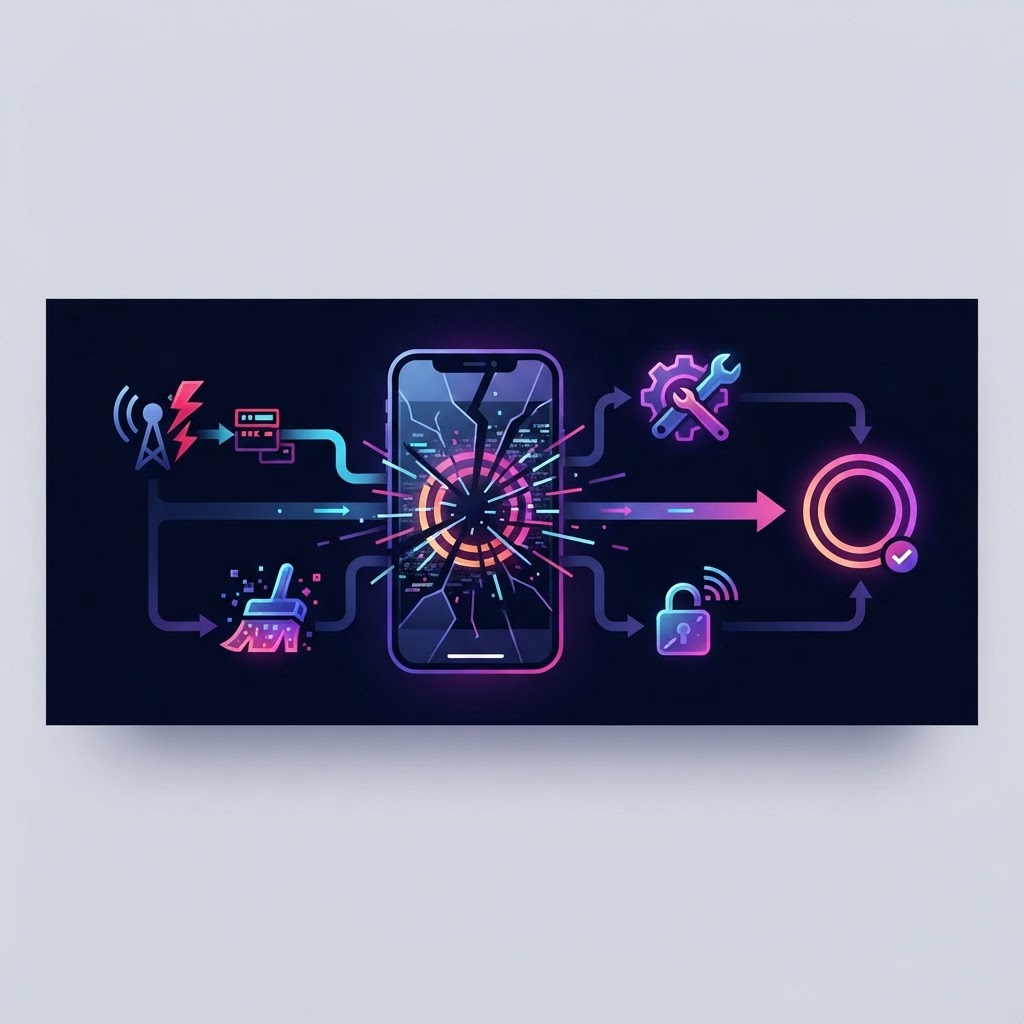
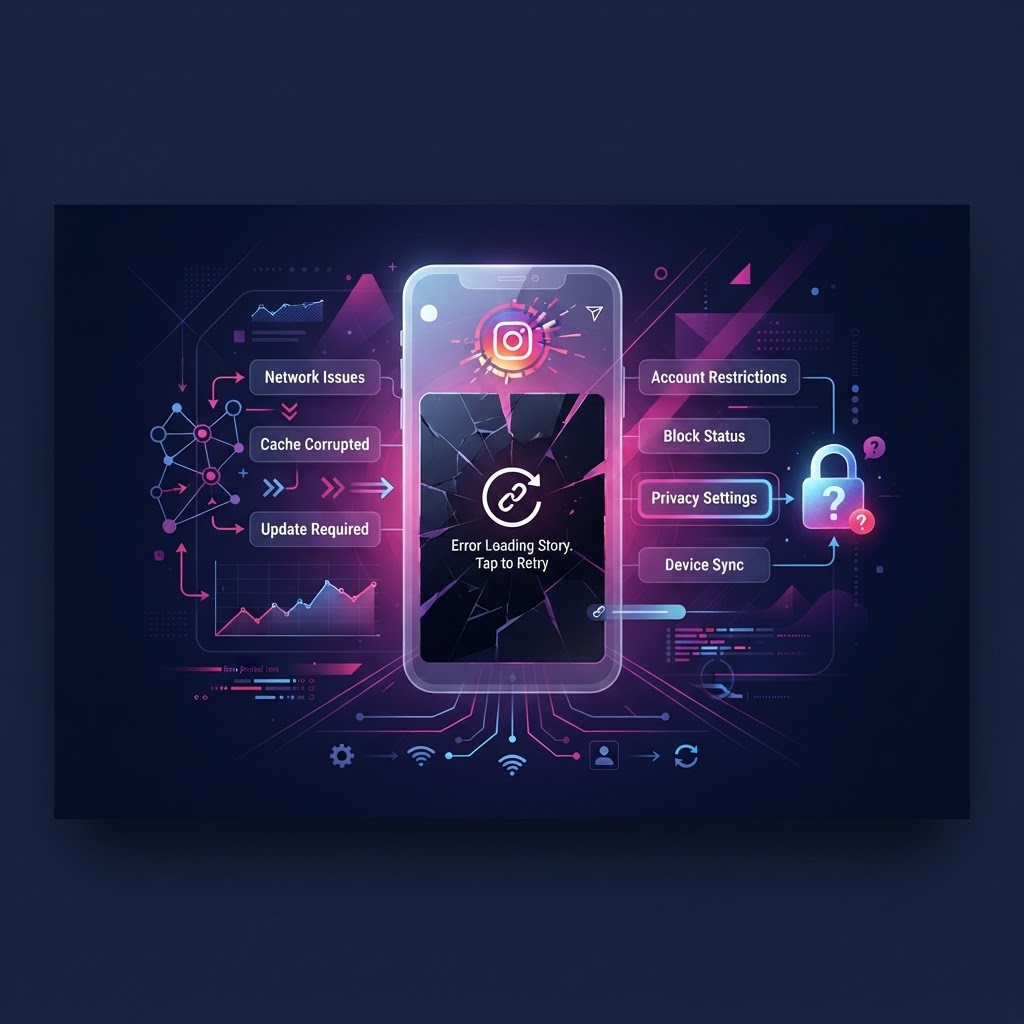
When you tap on an Instagram story only to be met with a spinning loading icon, a frozen frame, or a black screen, it is natural to assume the worst. However, the vast majority of story-viewing disruptions are caused by common technical issues ranging from local network instability to app-side data bloat. Understanding how to systematically isolate these variables is essential for maintaining a seamless browsing experience. This guide provides a comprehensive framework for diagnosing playback failures, resolving app-level performance bottlenecks, and utilizing alternative viewing methods to bypass persistent platform glitches.
Initial Diagnostics: Isolating the Root Cause of Playback Failures
Before you attempt complex technical fixes, you must determine whether the issue is local to your device, isolated to your network, or an account-level restriction. The "process of elimination" approach prevents you from wasting time on unnecessary app reinstalls.
Network Stability Verification
Instagram stories are dynamic video files that require consistent, high-bandwidth throughput. If your connection flickers, the app often fails to buffer the next frame. Start by running a quick speed test. If your download speed is below 5 Mbps, you will likely experience "stuck" loading loops. Switch from your current Wi-Fi to mobile data, or vice versa, to see if the problem persists across different network infrastructures. If the story plays immediately on one but not the other, your local ISP or router settings are the culprit.
Cross-Account Testing
Check if the issue is account-specific. If you have a secondary account, log into it and attempt to view the same story. If the content loads flawlessly on the second account but remains blank on your primary one, the issue is not your device; it is a temporary server-side restriction or a "shadow" limit applied to your specific profile. Refer to our resource on Why Instagram Stories Won't Play: A Comprehensive Troubleshooting Guide for an in-depth analysis of playback-specific errors.
Resolving App-Level Glitches and Cache Corruption
Instagram is a data-heavy application that stores hundreds of megabytes of temporary files—including images, video snippets, and metadata—to accelerate load times. When these files become fragmented or corrupted, the app may struggle to fetch new content. Clearing your cache is the single most effective way to reset the application's "memory" without losing your account settings.
The Cache Clearing Workflow
- Access your device settings (Android: Settings > Apps; iOS: Settings > General > iPhone Storage > Instagram).
- For Android users, tap "Storage" and select "Clear Cache." Do not select "Clear Data" unless you are prepared to re-enter your login credentials and re-sync your account settings.
- For iOS users, if the app is consuming an unusually high amount of storage, the best approach is to offload or reinstall the app entirely to ensure a clean slate.
- Restart your phone immediately after clearing the cache to flush the RAM and force the OS to rebuild the app's internal file pointers.
Honest Limitations
While cache clearing works 80% of the time, it will not fix issues caused by internal server outages (Instagram downtime) or if the story file itself is corrupted upon upload. If you still see a spinning wheel after clearing the cache, the issue is likely on the sender's end or Instagram’s servers.
Understanding Privacy Constraints and Content Availability
Sometimes, what you perceive as a "playback error" is simply a reflection of the platform’s privacy architecture. Instagram is designed to protect users, and if a story appears unavailable, you should first assess the status of the account and the age of the post.
Decision Criteria for Content Access
- Expiration: Stories are designed to self-destruct after 24 hours. If a story has expired, there is no technical way to refresh the app to view it. If you suspect you are trying to view content that has already timed out, you may find our guide on Recovering Expired Instagram Story Content: A Step-by-Step Guide useful for understanding what is theoretically retrievable.
- Account Status: If an account is set to "Private," you will be unable to view their stories unless you are an approved follower. No amount of cache clearing or network switching will bypass this privacy setting.
- Manual Deletion: If a user deletes their story, the post is wiped from the server. Your app will likely display a "This story is unavailable" notification.
Utilizing Anonymous Viewing Tools as a Workaround
When your official app is bogged down by excessive data, background processes, or compatibility bugs, the most efficient workaround is to use a dedicated, web-based viewer. Tools like InstaSpy.ai operate independently of your Instagram account’s app environment, meaning they are immune to your local device's cache errors and connectivity bottlenecks.
Why Anonymous Viewers Provide Better Reliability
Because these tools render content directly from the server to your browser, they bypass the "middleman" of the Instagram app. This is particularly useful for users on older hardware or those with unstable local app installs.
- Navigate to InstaSpy.ai.
- Input the username of the account you wish to view.
- The viewer fetches the live story data. Since it is browser-based, you are not subjected to the app’s internal caching issues.
- For those who frequently visit specific accounts, you can manage your digital archives by learning How to Save Instagram Highlights Locally: The Ultimate Guide.
Essayez InstaSPY maintenant
Consultez gratuitement et anonymement votre premier profil Instagram
Saisissez un nom d’utilisateur pour voir les stories, stories à la une, reels et publications disponibles, sans vous connecter à Instagram.
Aucun mot de passe Instagram requis
Handling "Story Unavailable" and Account Restrictions
Receiving a persistent "Story Unavailable" error, even when you are certain the user is active, suggests that your account may be subject to a temporary restriction. Instagram employs automated systems to flag accounts that exhibit "bot-like" behavior, such as excessive viewing, liking, or commenting in a short timeframe.
Troubleshooting Steps for Account Restrictions
- Check Your Account Status: Navigate to Settings > Account > Account Status. If you see a notification regarding a community guideline violation, your ability to interact with stories may be temporarily suspended.
- Neutral Account Audit: As previously mentioned, use a burner or secondary account to check if the story displays normally. If it does, your primary account is under a "shadow" restriction.
- The 48-Hour Rule: Most temporary restrictions (often called shadowbans) are short-lived. Refrain from attempting to load the story repeatedly, as this can extend the restriction period. Wait 48 hours and try again.
Software Updates and Device-Level Compatibility
Instagram is a rapidly evolving platform. Its developers frequently push updates that leverage new video codecs or compression algorithms to save bandwidth. If you are running an outdated version of the app, your client may not know how to "decode" these newer video files, resulting in black screens or infinite loops.
Ensuring Full Compatibility
- OS Level: Check if your mobile OS requires an update. Older versions of Android or iOS may lack the necessary security patches and media frameworks required to render modern video formats.
- App Store/Play Store Refresh: Ensure that "Auto-Update" is toggled on. If you prefer manual updates, visit the store page daily to ensure you are on the latest build. Reinstalling the app is often a "hard reset" that forces the system to pull the most stable version of the binary, fixing deep-seated compatibility bugs that a simple update might miss.
Foire aux questions
Can I view a story if I have been blocked by the user?
No. A block is a hard-coded privacy feature. If you have been blocked, the account effectively ceases to exist in your interface. No third-party viewer or technical workaround can bypass a direct user block.
Why do some stories appear as black screens?
This is usually a rendering issue. It typically happens when the phone's GPU struggles to decode the high-resolution video codec used in the story. Clearing the cache or updating the app often resolves this as it clears out conflicting temporary media settings.
Will using InstaSpy.ai count as a view?
No. One of the primary benefits of anonymous viewers is that they operate via an external API that does not pass your identity back to the Instagram server, ensuring a completely private browsing experience.
Does clearing the cache delete my personal data?
No. Your photos, DMs, account preferences, and followers remain securely linked to your profile on Instagram's servers. Clearing the cache only removes the temporary "scrapbook" of images and files your phone saved to make loading faster.
Conclusion
Troubleshooting Instagram story errors is largely about isolating the variable—whether it is your connection, your app's cache, or a restriction on your account. While the official application is prone to occasional glitches due to its sheer scale and frequency of updates, these issues are almost always solvable with a logical, step-by-step approach. If the official app remains unreliable, third-party solutions such as InstaSpy.ai provide a robust, anonymous, and independent way to view public content without the frustration of repeated loading errors. By maintaining a clean cache and staying updated on your device’s software, you can ensure that you never miss an update, regardless of the technical hurdles encountered by the main platform. Visit https://instaspy.ai to streamline your viewing process today.
Related Profiles
InstaSpy.ai propose des outils pour consulter et analyser en toute discrétion des profils Instagram publics, sans vous connecter à Instagram.