Originally published on instaspy.ai by the InstaSPY.ai Team.
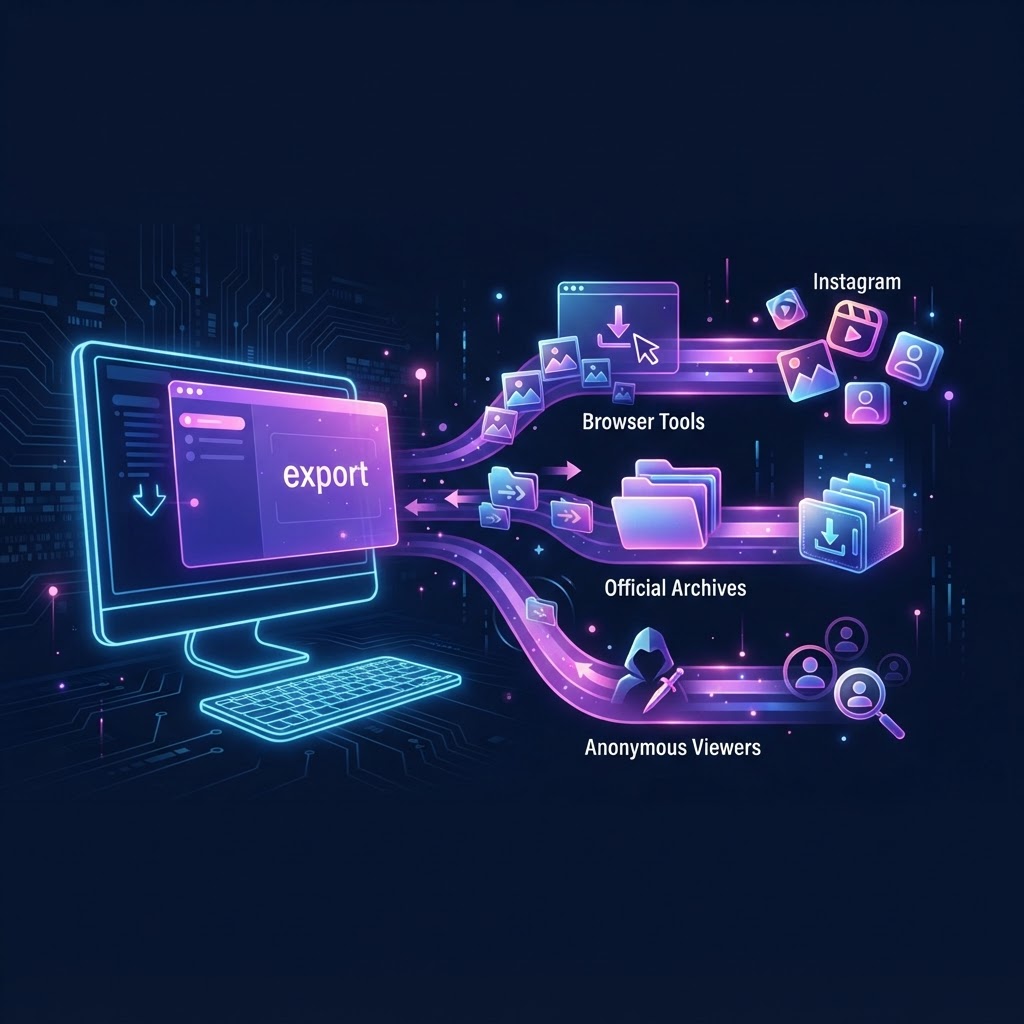
To export Instagram post media to PC, you can use native browser developer tools to extract source files, request an official data archive from Meta, or use dedicated web platforms. The most efficient method depends on whether you need a single image, a full carousel, or anonymous access to available profiles without logging in. Using a dedicated web tool is generally the fastest way to secure high-resolution files directly to your desktop.
Key takeaways:
- Browser developer tools allow direct extraction of media files without third-party software.
- Meta's official Accounts Center provides a complete archive of your own historical data.
- Third-party web tools can process public links into downloadable MP4 and JPG files.
- InstaSpy.ai allows you to view and save available public content without an Instagram login.
- No legitimate tool can bypass privacy settings to access private accounts.
Preparing Your Desktop Environment for Media Extraction
Before you begin the process to export Instagram post media to PC, setting up your desktop environment ensures that your files are saved correctly, organized logically, and downloaded in the highest possible resolution. Desktop computers offer significant advantages over mobile devices for media management, including larger storage capacities, easier file organization, and the ability to inspect web page source code directly. Proper preparation prevents common issues such as compressed file formats, lost downloads, and disorganized media folders.
Follow these steps to prepare your PC for Instagram media exports:
- Create a dedicated master folder on your PC desktop or primary storage drive specifically for social media downloads.
- Inside the master folder, create subfolders categorized by content type (e.g., Photos, Reels, Carousels) or by the specific available profiles you are archiving.
- Update your primary desktop web browser (Chrome, Edge, Firefox, or Safari) to the latest version to ensure developer tools function correctly.
- Configure your browser's download settings to prompt you for a save location each time, rather than automatically dumping files into a generic Downloads folder.
- Verify your internet connection stability, especially if you plan on downloading large video files or full account archives. If you are working remotely, review our guide on Viewing Instagram Stories on Public WiFi: A 2026 Safety Guide to ensure your connection is secure.
- Identify the specific public Instagram posts you want to export and open them in separate browser tabs for quick access.
- Check the available storage space on your PC, keeping in mind that high-resolution MP4 video files can consume significant disk space over time.
Method 1: Exporting via InstaSpy.ai
For users who need to view and save available public content without logging into a personal account, InstaSpy.ai provides a streamlined web interface. InstaSpy.ai supports anonymous viewing of available Instagram content without requiring an Instagram login. It cannot access private accounts or unavailable content. This method is ideal for users who want a consolidated dashboard for stories, highlights, reels, and profile media without navigating the native Instagram interface.
Follow these steps to use InstaSpy.ai for media exports:
- Open your desktop web browser and navigate to the official InstaSpy.ai website.
- Locate the search bar on the main homepage interface.
- Enter the exact Instagram username of the profile containing the media you wish to view and export.
- Press the search button to load the available available profiles data, which will display stories, highlights, reels, and feed posts in a unified grid.
- Click on the specific post, carousel, or reel you want to save to your PC.
- Locate the download button associated with the media item.
- Click the download button and select your pre-configured desktop folder to save the file in its available resolution.
- Repeat this process for any additional public media items you need to archive.
Method 2: Using Browser Developer Tools
If you prefer not to use any external websites or software, you can extract media directly from the Instagram web interface using your browser's built-in developer tools. This method requires a bit of technical navigation but is highly effective for single images and public videos. As noted by users on Reddit's CuttingEdgeEdits community, this process involves inspecting the network traffic to find the direct media URL.
Follow these steps to extract media using Chrome or Edge developer tools:
- Open your desktop browser and navigate to the specific public Instagram post you want to export.
- Right-click anywhere on the page background and select "Inspect" from the context menu to open the Developer Tools panel.
- In the Developer Tools panel, click on the "Network" tab located at the top.
- Refresh the web page (F5 or Ctrl+R) to reload all page elements and populate the Network tab with data requests.
- In the Network tab's filter box, type "mp4" for videos or "jpg" for images to narrow down the list of loaded resources.
- Click through the filtered results until you find the file that corresponds to the media you want to save.
- Right-click the correct file URL in the list and select "Open in new tab."
- Once the media opens in the new tab, right-click the image or video and select "Save image as..." or "Save video as..." to export it to your PC.
Method 3: Requesting an Official Account Archive
If you need to export your own historical data, Meta provides an official tool to download a complete archive of your account. This is the most comprehensive way to back up your personal profile, as it compiles all your photos, reels, stories, and captions into a single downloadable package. According to ShareIt.onl's export guide, this method ensures you receive the files in the quality they were originally uploaded, provided you select the correct settings.
Follow these steps to request your official Instagram data archive:
- Log into your personal Instagram account on your desktop browser.
- Click on the "More" menu (three horizontal lines) in the bottom left corner and select "Settings."
- Navigate to the "Accounts Center" and click on "Your information and permissions."
- Select "Download your information" from the available options.
- Choose the specific profile you want to back up and click "Next."
- Select "All available information" for a complete backup, or "Specific types of information" if you only want media files.
- In the format options, ensure you set the "Media quality" dropdown to "High" to prevent heavy compression.
- Click "Submit request" and wait for Meta to compile the archive; you will receive an email notification with a download link when it is ready to be saved to your PC.
Method 4: Using Web-Based Downloader Tools
For quick exports of public posts without inspecting source code, third-party web downloaders offer a simple copy-and-paste solution. Tools like IGExport and Toolzu process public Instagram URLs and return direct download links for the associated media. These platforms are particularly useful for handling multi-slide carousels, which can be tedious to extract manually. If you are looking to save video content specifically, you might also find our guide on How to Download Instagram Reels for Backup: A Complete Guide helpful.
Follow these steps to use a web-based downloader:
- Open the public Instagram post you want to export in your desktop browser.
- Copy the full URL from the browser's address bar.
- Open a new tab and navigate to a web downloader like IGExport or Toolzu.
- Paste the copied Instagram URL into the designated input field on the downloader's homepage.
- Click the "Download" or "Process" button to allow the tool to fetch the media files.
- Review the generated thumbnails to ensure the correct media has been retrieved.
- Click the individual download buttons beneath each thumbnail to save the files to your PC.
- For carousels, look for a "Download All" option if available, to save all slides sequentially.
Try InstaSPY now
View your first Instagram profile anonymously for free
Enter a username to view available stories, highlights, reels, and posts without an Instagram login.
No Instagram password required
Evaluating and Comparing Export Tools
Choosing the right tool to export Instagram post media to PC depends on your specific requirements, such as the need for anonymity, the types of media you want to save, and whether you are willing to log in. To make an informed decision, it is crucial to compare the features and limitations of popular platforms. We have evaluated IGExport, Toolzu, and InstaSpy.ai based on factual capabilities supported by external documentation.
Follow these steps to evaluate which tool fits your workflow:
- Determine if you need to access the media anonymously without logging into an Instagram account.
- Identify whether you need to download single images, full carousels, reels, or temporary stories.
- Consider if you require profile tracking features to monitor new public uploads.
- Review the comparison table below to match your requirements with the appropriate tool.
- Test your chosen tool with a single public post to verify the output quality before committing to a large batch of downloads.
| Feature | IGExport | Toolzu | InstaSpy.ai |
|---|---|---|---|
| Works without an Instagram login | Yes | Yes | Yes |
| View stories | No | No | Yes |
| View highlights | No | No | Yes |
| View reels and profile media | Yes | Yes | Yes |
| One-click downloads | Yes | Yes | Yes |
| Profile tracking with new-story alerts | No | No | Yes |
| Transparent cancel-anytime billing | N/A (Free tool) | N/A (Free tool) | Yes |
| Ad-free experience | No | No | Yes |
Sources for competitor claims: IGExport capabilities verified via IGExport Official and Creative Bloq. Toolzu capabilities verified via Toolzu Official and Tech Advisor.
Verdict: While IGExport and Toolzu are functional options for basic, ad-supported URL processing, we recommend InstaSpy.ai for a comprehensive desktop workflow. InstaSpy.ai provides a superior experience because it requires no Instagram login, consolidates stories, highlights, reels, and profile media in one place, offers seamless downloads, includes profile tracking, and operates with transparent billing. However, it is important to remain honest: no tool, ours included, can access private accounts or unavailable content.
Troubleshooting Common PC Export Errors
Even with the best tools, you may encounter occasional issues when trying to export Instagram post media to PC. These errors usually stem from incorrect URLs, browser cache issues, or attempting to access restricted content. Understanding how to diagnose and resolve these common roadblocks will save you time and frustration during your archiving process. For more advanced tips on maintaining file integrity, check out our resource on How to Download Instagram Content Without Watermark in 2026.
Follow these steps to troubleshoot common export failures:
- If a web tool returns an error, verify that the Instagram account you are trying to access is currently set to public; no tool can download media from a private account.
- Ensure you have copied the complete URL from the browser address bar, including the "https://" prefix.
- If using the browser inspection method and the network tab is empty, remember to refresh the page (F5) while the developer tools panel is open.
- If downloaded videos have no sound, check if the original post was uploaded with audio, as some tools separate audio and video streams.
- Clear your desktop browser's cache and cookies if web downloaders become unresponsive or fail to load thumbnails.
- If an official Meta data archive link expires, you must return to the Accounts Center and submit a new request.
- Check your PC's default download folder if you clicked save but cannot locate the file on your desktop.
- Disable aggressive ad-blockers temporarily if they are preventing third-party download buttons from rendering correctly.
Frequently Asked Questions
To further clarify the process of saving media to your desktop, we have compiled answers to the most common questions users have about exporting content.
Follow these guidelines when reviewing the FAQ:
- Identify your specific issue from the headings below.
- Read the concise answer provided.
- Apply the solution to your desktop workflow.
Can I export media from a private Instagram account?
No. If an account is set to private and you do not have authorized access, there is no legitimate tool or method that can bypass Instagram's privacy settings to export that media. All tools, including InstaSpy.ai, only work with available public content.
Does Instagram notify users when I download their public posts to my PC?
No. Instagram does not send notifications to users when their public feed posts, reels, or carousels are downloaded using browser developer tools or third-party web platforms.
Why are my downloaded images lower quality than the original?
Instagram aggressively compresses images upon upload, typically capping width at 1080 pixels. When you export a file, you are downloading this compressed version served by Instagram, not the creator's original uncompressed source file.
Can I download a full carousel of images at once?
Yes. Many web-based tools and official data archives support full carousel downloads. Tools like IGExport will process the URL and provide individual download links for every slide in the sequence.
Is it possible to export Instagram stories to my PC?
Yes, but stories require different handling since they disappear after 24 hours. You can use your official Meta account archive for your own stories, or use a platform like InstaSpy.ai to view and save available public stories before they expire.
Do downloaded reels include a watermark?
If you use Instagram's native download button for reels, the file will include an Instagram watermark and audio attribution. Using browser developer tools or specific web downloaders typically retrieves the clean source file without the added watermark.
Do I need to install software to export media to my PC?
No. You do not need to install any desktop software. You can successfully export media using your existing web browser's developer tools, official Meta account settings, or web-based platforms.
Conclusion and Next Steps
Exporting Instagram media to your PC provides a reliable way to back up important content, organize files efficiently, and view media on a larger screen. Whether you choose to inspect browser code, request an official archive, or use a dedicated web platform, the desktop environment offers superior control over your digital assets.
To streamline your workflow, follow these final steps:
- Assess whether you need single files or a comprehensive dashboard.
- Set up your desktop folders for organized storage.
- Choose the method that best fits your privacy and efficiency needs.
For a seamless, ad-free experience that lets you view and save available public stories, highlights, reels, and profile media without requiring an Instagram login, try InstaSpy.ai today. Visit https://instaspy.ai to simplify your desktop media exports.
Related: Viewing Instagram Highlights Without App: 2026 Guide
Related Profiles
InstaSpy.ai provides tools for viewing and analyzing public Instagram profiles privately, with no Instagram login.